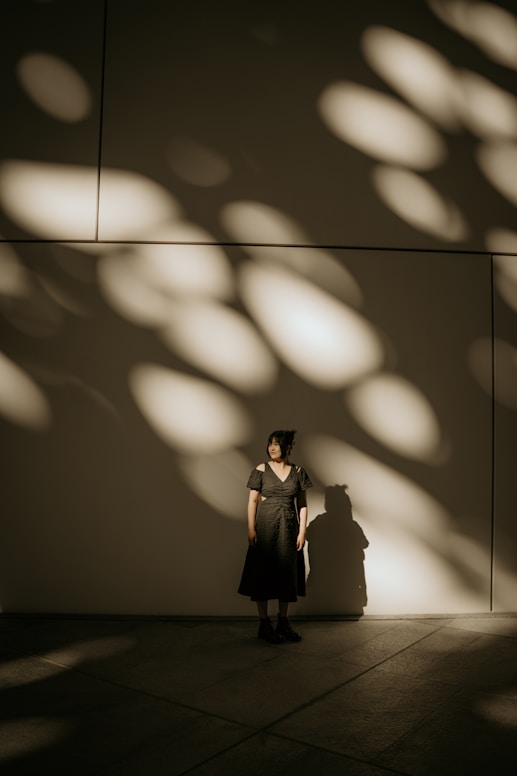
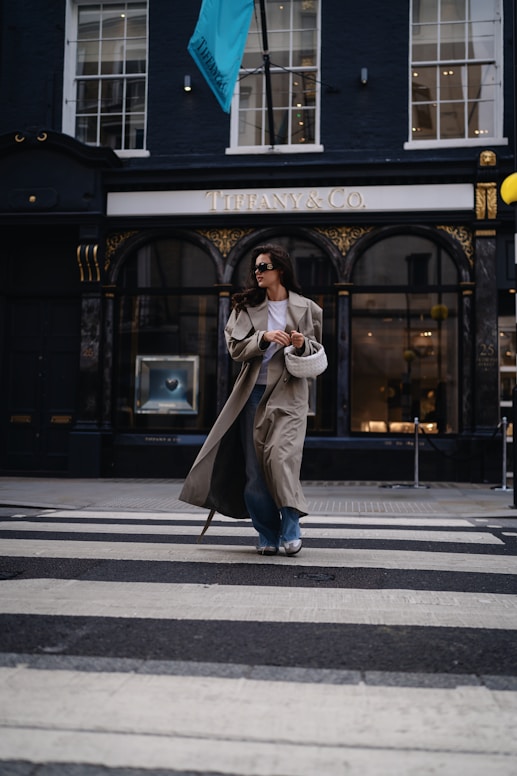
One of the most impactful January updates on the IMI service is Kling 2.6 Motion Control. It literally lets you control a character's movement frame by frame, transferring actions from real video to a static image. Previously, this level of editing required a filming crew, actors, and weeks of post-production. Now, it takes just a couple of files and a click of the "Generate" button.
In this article, we'll explore what Kling 2.6 Motion Control is, how it differs from standard image-to-video models, and how to get the best results for your content.
Kling 2.6 Motion Control is a specialized multimodal model that understands human body physics and cinematic camera movement logic. Simply put, the neural network no longer "guesses" how a character should move. It precisely replicates movement from a reference video and transfers it to your character while fully preserving their appearance.
The result is predictable, visually clean videos suitable for marketing, social media, and production.
At its core, Motion Control is based on a simple yet powerful idea:
Movement, facial expressions, tempo, and weight distribution are taken from the video, while appearance and identity come from the image. Unlike previous image-to-video models, there's minimal AI "improvisation" here. Kling 2.6 acts as a digital "puppeteer," not an inventor.
The service confidently handles dancing, fight scenes, and athletic movements. The model understands body inertia and balance. If the reference video features a jump or a sharp kick, the generated character appears heavy and physically plausible, not "clay-like" or obviously AI-generated.
Hands are a common weak point in AI video, but this aspect is significantly improved here. Finger and hand motions replicate the real video, which is crucial for gestures, demonstrations, and product scenes.
The background from the reference video is not mandatory. You can change the surroundings using a text description while preserving the character's movement. For example, the character continues walking or dancing but in a different space.
Kling 2.6 offers different camera orientation modes. You can define how strictly the AI should follow the camera movements from the video or adhere to the composition of the source image. This provides control over the frame's narrative.
Simplifying it to a "for dummies" level, the process looks like this:
The result's quality directly depends on the image. Pay attention to two key points:

The reference video is the "skeleton" of the future animation.
The best results come from videos with: one clear character; a simple, contrasting background; and matching scale.
For a talking-head portrait, use a close-up shot. Applying a full-body walking video to a portrait might cause the face to "float" and jerk.
After uploading the image and video, simply click Generate. The output is a ready-made video optimized for TikTok, Instagram, or YouTube. You can download and use it immediately.
Create a brand character and animate it using movements from real people. For example, company employees record videos, and the character replicates their gestures and expressions—no studio or camera required.
Motion Control is excellent for hand-centric scenes: interacting with an interface, gadgets, or physical products. Movements look natural and clear.
Take one high-quality "hero" motion video and apply it to different characters across various age groups, appearances, and ethnicities. The movement remains the same, allowing easy content adaptation for different markets without reshooting.
Kling 2.6 Motion Control isn't just another update; it's a step towards high-quality, controlled video production. This is precisely why we prioritized its integration into the IMI platform as quickly as possible.
If before you had to adjust your plans to fit AI video results, now the results follow your commands. We hope this guide is helpful—and that social media gets flooded with a wave of awesome, viral video content.
Keywords: Kling 2.6 Motion Control, AI video generation, controlled AI video, motion transfer, image to video, video production, AI video editing, virtual influencers, product demonstration AI, IMI platform, AI video tool, character animation AI, AI for marketing.

Max Godymchyk
Entrepreneur, marketer, author of articles on artificial intelligence, art and design. Customizes businesses and makes people fall in love with modern technologies.
AI design generators are rapidly evolving, but most of them solve one problem: they create beautiful pictures. They fail to address another, more crucial detail: these images often cannot be used for serious work. Text appears as gibberish, typography is unreadable, and layouts are uncontrollable.
Seedream 4.0 by ByteDance is the exception. It's not just a pretty image generator. It's a tool that understands design structure: how to organize elements on a page, how to align text, how to maintain hierarchy, and how to create professional compositions.

In this article, we will break down what makes Seedream 4.0 a unique neural network, how to use it, how to write effective prompts, and in which cases it outperforms other AI tools.
| Parameter | Value |
|---|---|
| Company | ByteDance (creators of TikTok) |
| AI Type | Type Multimodal image generation |
| Specialization | Poster design, infographics, marketing visuals |
| Maximum Resolution | 2K (2048×2048 pixels) |
| Supported Languages | English and Chinese |
| Key Feature | Structural design (typography, composition, layout) |
| Editing | Non-destructive (Natural Language Editing) |
| Ideal For | Posters, infographics, banners, marketing, branding |
| Price | Free plan + paid subscription |
If you've tried Midjourney, DALL-E, or other AI generators, you know their main limitation: they create beautiful but unpredictable images. Text on them looks like typos, typography is random, and layout is impossible to control.
Seedream 4.0 works differently. Its architecture is built not for maximum creativity, but for maximum structure. This is a fundamental difference.
When you generate an image in Midjourney, the system thinks: "Make it beautiful, expressive, artistic." When you generate in Seedream, the system thinks: "I will follow design rules - hierarchy, alignment, composition, readability."
It's like the difference between an artist who paints what they like and a designer who creates a layout based on client requirements.
| Aspect | Traditional AI (Midjourney, DALL-E) | Seedream 4.0 |
|---|---|---|
| Focus | Creativity, aesthetics | Structure, hierarchy, design logic |
| Typography | Weak, often unreadable | Strong, professional |
| Layout | Random, unpredictable | Precise, controllable |
| Text inside image | Almost always errors | Clear and correct |
| Usage | Inspiration, special effects | Publish-ready result |
| Editing | Need to redo from scratch | Non-destructive editing |
| Resolution | Up to 1K | Up to 2K |
| Composition accuracy | Low | High |
ByteDance released Seedream 4.0 at the end of 2024 with significant improvements:
There are several AI tools for design. Let's see how they differ:
Seedream wins in one critical area: it creates results that can be used immediately, without additional work in Photoshop.
Understanding how Seedream works will help you write better prompts and get the desired results. You don't need to be a machine learning expert – just grasp the basic logic.
Under the hood, Seedream runs on an architecture ByteDance calls a multimodal transformer. This means the system processes several types of input data simultaneously: text, images, styles, references.
Unlike models that "only think about pictures," Seedream "thinks about design": it understands what layout, typography, composition are and how to organize them correctly.
When you send a prompt to Seedream, the system goes through three main stages:
Stage 1: Prompt Understanding
The system analyzes your description and extracts design categories from it:
For example, if you write "Travel poster, headline 'Discover Japan' centered, Mount Fuji in the background, calm colors," the system understands:
Stage 2: Design Grid Creation
The system creates an internal "design grid" – like a designer who first sketches block placement on a draft before drawing details.
This grid defines:
This is the critical part. This is exactly where Seedream differs from other models – it doesn't just draw objects, it plans their placement.
Stage 3: Visual Rendering
With a clearly defined grid and parameters, the system generates the final image:
Result: A ready-made layout that looks professional.
Most AI generators produce unreadable text because they don't "plan" text areas. Seedream works differently:
Result: Text often looks real, not like random letters. This doesn't mean the text is 100% perfect (errors are still possible), but the error probability is much lower than competitors.
When you upload reference images to Seedream, the system:
Then the system applies these parameters to your new image. This allows you to maintain consistency – all your designs look like one collection.
When you ask Seedream to "change the background color to blue but leave the text as is," the system:
This works because Seedream "understands" the design structure (this is background, this is text), rather than just manipulating pixels like traditional Photoshop.
Step 1 – Choose Image Type
Before writing a prompt, decide what you want to create. This is critical for result quality because Seedream optimizes composition for different types.

Main options:
Why this is important: When you specify the type, Seedream immediately understands which design rules to apply. A poster requires clear hierarchy and readable text. Infographics require structure and space utilization. A cinematic image can have freer composition.
Step 2 – Write a Clear Prompt
This is the most important step. A prompt for Seedream is not poetry, it's a technical design description.
Prompt formula:
[Type] + [Main Object] + [Where text/headlines] + [Colors & Atmosphere] + [Style] + [Composition direction]

Example 1: Concert Poster
"Concert poster design, title 'NEON NIGHTS 2025' centered in bold white letters, band silhouettes in blue light below, dark purple gradient background, modern minimalist style, vertical composition."
What works here:
Example 2: Statistics Infographic
"Infographic about renewable energy growth, circular layout with four icons: solar panel, wind turbine, hydroelectric dam, geothermal, each with percentage numbers (45%, 30%, 20%, 5%), clean typography, green and white color scheme, modern flat design."

What works here:
Example 3: Social Media Banner
"Social media banner for fitness brand, headline 'TRANSFORM YOUR BODY' at top, fit person doing push-up on right side, bright orange and white colors, modern bold typography, call-to-action 'Join Now' button at bottom, energetic dynamic composition."

What works here:
Important Rules:
Step 3 – Refine Using Editing
Seedream generates an image in about 30–60 seconds. If the result is close but needs edits – use editing.
Instead of regenerating, simply say:
The system will understand what to change and apply changes to the existing design.
| Operation | Example Command | Result |
|---|---|---|
| Text Replacement | "Change 'Summer Sale' to 'Winter Festival" | Text changes, style and position preserved |
| Color Change | "Background from pink to navy blue" | Background color changes, elements remain |
| Style Transformation | "Convert to 3D cartoon illustration" | Entire style changes, layout preserved |
| Element Moving | "Move the logo to bottom right corner" | Position changes, size and look remain |
| Effect Addition | "Add glow effect to the text" | Effect added without other changes |
Tip: Iterate with editing, don't redo from scratch. Time saving – significantly.
Step 4 – Use Reference Images
If you want the result to match a specific palette, style, or composition, upload reference images.
How it works:
The system applies these parameters to your new design.
Usage examples:
Tip: Use references for consistency. If you need 10 banner variations for a campaign, upload the first successful version as a reference for the rest. All 10 will look like one collection.
A prompt is your instruction to the designer. If you write vaguely, the designer will guess what you mean. If you write structurally and clearly – the designer will create exactly what you asked.
Seedream works the same way. Here's how to write prompts that work.
Many people write prompts like a dream or poetry: "Beautiful sunset over the sea, seagulls flying, feeling of freedom..."
This doesn't work for Seedream. It needs a technical instruction: "Beach sunset scene, golden hour lighting, seagulls flying left, calm water with gentle waves, warm orange and pink sky, minimalist composition with horizon line at lower third."

Difference: The first prompt is figurative, vague. The second is specific, structural, with design parameters.
A good prompt for Seedream contains 6 key elements:
Start by specifying what you are creating. This sets the composition rules.
Examples:
✅ "Poster design for..." (correct, system knows how to structure) ❌ "Make something nice..." (incorrect, no context)
What should be the focal point? Describe it specifically.
Examples:
✅ "athlete jumping over digital barriers" (specific, visual) ❌ "sporty image" (vague)
Where should the text be? What size? What style?
Examples:
✅ "headline 'SUMMER SALE' at top center in bold white letters, small gray text 'Up to 50% off' below" (specific) ❌ "text somewhere" (incorrect)
What palette do you want? What atmosphere (bright, moody, neutral)?
Examples:
✅ "dark blue and cyan gradient background with neon accents" (specific) ❌ "nice colors" (incorrect)
How should it look? In what style?
Examples:
✅ "modern minimalist flat design with bold geometric shapes" (specific) ❌ "cool looking" (incorrect)
How are elements distributed? What is the composition direction?
Examples:
✅ "symmetrical vertical composition with elements centered, lots of negative space on sides" (specific) ❌ "nice layout" (incorrect)
Here is a universal template. Use it, and your prompts will work:
[IMAGE TYPE], [PRIMARY SUBJECT], [TEXT PLACEMENT AND CONTENT], [COLOR PALETTE], [STYLE/AESTHETIC], [COMPOSITION/LAYOUT]
Let's apply this formula to real projects.
One of the main features of Seedream 4.0 is non-destructive editing (natural language editing). This means you can change parts of a design without recreating everything from scratch.
This is revolutionary because it saves hours of work. Instead of generating 10 variants and choosing the best, you generate once and edit 9 times.
When you ask Seedream to change a specific element, the system:
Result: You get a new variant in 15–30 seconds without waiting for full regeneration.
Seedream supports many types of edits. Here are the main ones:
What you ask: "Change the headline from 'Summer Sale' to 'Winter Clearance'"

What happens:
Real example:
Tip: Use this for quick A/B testing of different slogans.
What you ask: "Change the background color from blue to burgundy"

What happens:
Tip: Use to adapt a design for different seasons, brands, or events.
What you ask: "Move the logo from bottom left to top right corner"

What happens:
System finds the logo.
Moves it to a new location.
The rest of the design reformats but remains harmonious.
No changes to logo size or style. Real example:
Original design: Poster with logo at bottom left.
Command: "Move the logo to the top right, keep it the same size."
Result: Logo in a new place, composition balance preserved.
Tip: Use for different formats (one design for a square post, another for vertical).
What you ask: "Convert this to a 3D illustration style, keep the same composition"

What happens:
Real example:
Tip: Use to create different variants of one design (realistic for print, flat for web).
What you ask: "Add a glow effect to the headline"

What happens:
Real example:
Tip: Use to enhance emotion or style.
What you ask: "Remove the background pattern, keep the solid color"

What happens:
Real example:
Tip: Use to simplify a design if the first version is too busy.
| Operation | Command | Result | Time |
|---|---|---|---|
| Text | "Change 'SALE' to 'OFFER" | Text updated, style preserved | 15–20 sec |
| Background Color | "Background from pink to navy" | Color changes, elements remain | 15–20 sec |
| Logo | "Move logo to top right" | Position updated, size preserved | 20–30 sec |
| Style | "Make it more minimalist" | Entire style redone, layout same | 30–45 sec |
| Effect | "Add shadow to text" | Effect added, text as before | 20–25 sec |
| Removal | "Remove background pattern" | Element removed, rest as before | 15–20 sec |
Imagine you are creating a product banner. Here's how the iterative process works:
Total time: 155 seconds (~2.5 minutes) instead of 30–60 minutes in Figma or Photoshop.
Edit if:
Regenerate from scratch if:
You already know how to use Seedream, write prompts, and edit. Now let's look at how to get outstanding results, not just good ones. These tips are based on the experience of designers and marketers who work with Seedream daily.
Be Explicit About Layout Directions
One of the main mistakes is just describing the object, forgetting about the layout.
❌ Incorrect: "Design a poster for a tech conference with speakers and stage." ✅ Correct: "Poster design for tech conference, prominent stage in center with three speakers on it, headline 'INNOVATION SUMMIT 2025' at top in bold letters, speaker names and roles below, dark modern background, vertical composition with stage as focal point."
Why it's important: Seedream understands layout deeper than just objects. When you explicitly specify what should be in the center, what's on the edges, what the hierarchy is – the result is more professional.
Practical tip: Think like a designer on paper. First decide where the headline is, where the main content is, where secondary elements are. Then write the prompt.
Avoid Long Text
Seedream handles short headlines and slogans well. But paragraphs of text often come out unreadable.
❌ Incorrect: "Infographic explaining the benefits of renewable energy including cost savings, environmental impact reduction, and long-term sustainability for future generations." ✅ Correct: "Infographic about renewable energy, three icons: dollar sign with '70% savings', leaf with 'zero emissions', sun with 'sustainable future', clean typography, minimal text."
Why it's important: The system works better with visual elements (icons, charts) and short labels than with descriptive texts.
Practical tip: If you need long text, create the design in Seedream, then add the text in Figma or Photoshop.
Use Reference Mode for Consistency
If you need to create a collection of designs in a unified style, use the first successful result as a reference.
Example workflow:
Result: 4 designs in a unified style, instead of searching for style each time.
Practical tip: Save a "master design" for each project. Then use it as a standard for all variants.
Test Different Styles on One Subject
Don't try to choose the perfect style on the first try. Better to quickly generate several variants and choose.
Example:
Why this works: Different styles suit different audiences. What you like may not appeal to your target audience. Testing helps find the optimum.
Practical tip: Dedicate 5 minutes to testing styles before starting serious edits.
Use Negative Space Consciously
Professional designs often look "breathable" thanks to empty space (negative space). Seedream understands this.
❌ Incorrect: "Poster with everything covering the entire space, no empty areas." ✅ Correct: "Poster with plenty of negative space on sides, subject centered, minimal text, lots of breathing room around elements, clean uncluttered composition."
Why it's important: Negative space not only looks beautiful – it makes design more professional and readable.
Practical tip: Add words to prompts: "lots of white space," "breathing room," "minimal elements," "clean composition."
Specify Aspect Ratio
If you are creating a design for a specific platform, specify the aspect ratio. This will help Seedream optimize composition.
Examples:
❌ Incorrect: "Design a social media post." ✅ Correct: "Design an Instagram post (square 1:1 format), headline centered, call-to-action at bottom, vibrant colors, mobile-optimized composition."
Practical tip: Always specify the format in the prompt. This gives the system a clear instruction.
Use Color Psychology
Different colors evoke different emotions. Use this consciously.
Practical tip: Before writing a prompt, decide on the emotion you want to evoke. Then choose the colors that evoke it.
Don't Overcomplicate From the Start
Better to start with a simple design and add details than to start with a complex one and simplify.
Example iteration:
Result: You see at which stage the design starts to look better.
Practical tip: Start with the minimum, then add layers.
Combine Seedream with Other Tools
Seedream is not an alternative to Figma or Photoshop – it's a complement.
Optimal workflow:
Instead of:
Creating everything from scratch in Figma (45–60 minutes)
Practical tip: Use Seedream for visual foundations, Figma/Photoshop for final touches.
Study Prompts That Work
When you create a successful design, save the prompt in the cloud or a document. This is your personal database of best examples.
Practical tip: In a month, you'll be generating designs 3 times faster because you'll reuse proven prompts.
Edit, Don't Redo
This isn't just a tip – it's a change in mentality.
❌ Old approach: "Result isn't perfect → I'll generate a new one." ✅ Correct approach: "Result is close → I'll edit individual parts."
Time saving: 5–10 times. Practical tip: Before clicking "Generate," ask yourself: "Can I edit this?"
Use A/B Testing for Selection
If you need to choose between two directions, generate both and see which works better.
Example:
Then:
Practical tip: Seedream allows quick generation, so testing is now more accessible.
In 2025, there are several AI tools for creating design. But they solve different problems and suit different purposes. Let's understand how Seedream differs from competitors.
In this comparison, we'll look at five main tools:
| Criterion | Seedream 4.0 | Midjourney | DALL-E 3 | Magic Hour | Canva AI |
|---|---|---|---|---|---|
| Typography | ⭐⭐⭐⭐⭐ | ⭐⭐ | ⭐⭐⭐ | ⭐⭐⭐ | ⭐⭐⭐ |
| Layout/Composition | ⭐⭐⭐⭐⭐ | ⭐⭐⭐ | ⭐⭐⭐ | ⭐⭐⭐ | ⭐⭐ |
| Publish-readiness | ⭐⭐⭐⭐⭐ | ⭐⭐ | ⭐⭐⭐ | ⭐⭐⭐⭐ | ⭐⭐⭐ |
| Generation Speed | ⭐⭐⭐⭐ | ⭐⭐⭐ | ⭐⭐⭐⭐ | ⭐⭐⭐⭐ | ⭐⭐⭐⭐⭐ |
| Editing | ⭐⭐⭐⭐⭐ | ⭐⭐ | ⭐⭐ | ⭐⭐⭐ | ⭐⭐⭐ |
| Price | 💰💰 | 💰💰💰 | 💰💰 | 💰💰💰 | 💰 |
| Learning Curve | Medium | Low | Low | Medium | Very Low |
| Result Quality | ⭐⭐⭐⭐⭐ | ⭐⭐⭐⭐ | ⭐⭐⭐⭐ | ⭐⭐⭐⭐ | ⭐⭐⭐ |
Seedream 4.0 is not just another AI generator. It's a professional tool that understands design rules, typography, composition, and layout. It's a tool for those who want to create publish-ready assets, not inspiring drafts.
Seedream specializes in structural design. Posters, infographics, banners, marketing visuals – this is its territory. Here it is better than Midjourney, DALL-E, and most competitors.
Non-destructive editing saves hours. Instead of generating 10 variants, you generate once and edit 9 times. Time saving is significant.
Typography and composition work professionally. Seedream creates readable text and balanced layouts. This distinguishes it from other AIs.
Integration into the workflow is simple. Seedream works as a standalone tool or a complement to Figma/Photoshop. No complex integration is needed.
Max Godymchyk
Entrepreneur, marketer, author of articles on artificial intelligence, art and design. Customizes businesses and makes people fall in love with modern technologies.
A Personal AI Assistant is a software solution based on Large Language Models (LLMs) that understands user requests in natural language and performs a variety of tasks. From writing texts and analyzing data to generating solutions, this type of helper adapts to specific needs.
Core components work in a unified system:
The key difference between a personal assistant and a regular chatbot lies in versatility and adaptability. A chatbot answers a narrow range of questions (e.g., customer support only), while a personal assistant handles any task — from scheduling meetings to writing code.

Each element of the system plays its role:
Large Language Model (LLM) — a neural network trained on billions of words. It understands the meaning of your question and formulates a logical response.
Examples of powerful models: GPT-4, Gemini, and Claude.
Context Window — the amount of information the assistant can process at once. For instance, Claude handles 200K tokens (roughly a full book), while ChatGPT works with 128K tokens.
Memory System — remembers your preferences, past conversations, and uploaded documents, enabling personalized responses.
Integrations — connections to other services. For example, it can create calendar events, send emails, or publish social media posts.
| Parameter | Chatbot Personal | AI Assistant |
|---|---|---|
| Scope | Narrow specialization | Universal tool |
| Dialogue Context | Limited to a single session | Long-term memory |
| Learning from Your Data | No | Yes, via file upload |
| Typical Tasks | Q&A on a single topic | Hundreds of diverse tasks |
| Personalization | Minimal | Full adaptation |
A chatbot is a robot that gives standard answers. A personal AI assistant learns to understand you.
The technology has evolved through several key stages.
The leap forward was enabled by the transformer architecture. This structure allows the model to process entire text simultaneously, seeing connections between words over long distances. Previously (pre-2017), systems analyzed text sequentially — word by word. This was slow and imprecise. Transformers changed the approach: they look at all words at once and understand context much better.
This enables training models on trillions of words from the internet, books, and documents. The result is not just template-based answers, but reasoning, adaptation, and learning.
A personal assistant operates as a multi-layered system. Each layer handles a specific function, together creating the illusion of conversing with an intelligent helper.
The foundation is a large language model trained to predict the next word in a sequence. While this sounds simple, in practice it means the model has learned patterns of language, logic, and human knowledge.
GPT-4 is trained on trillions of words. It knows about physics, history, programming, medicine, and thousands of other domains. When you input a query, the model analyzes each word and creates a response by predicting word after word.
Model parameters represent how it weights information. GPT-4 has an estimated 1.76 trillion parameters. More parameters mean a more powerful model, but also greater resource demands.
The modern personal assistant is not just a text generator. It's an agent capable of making decisions and performing actions.
The system works like this:
This is possible via API integrations, connecting to your calendar (Google Calendar, Outlook), email, and other services.
The context window is the maximum amount of information the assistant can process in one dialogue.

Think of context as a computer's RAM. A small window (32K tokens like GigaChat) means the assistant "forgets" the start of a long conversation. A large window (200K tokens like Claude) allows it to remember everything at once.
For large documents, choose Claude — it can process an entire book at once. For regular conversations, 128K tokens (ChatGPT) is sufficient.
Long-term memory is different. The assistant remembers your preferences across sessions. For example, if you upload an SEO guide, it will consider it the next time you return.
Each interaction goes through several stages. Modern assistants are multimodal — they understand different input formats.
The system detects what you've uploaded and launches the appropriate handler.
When your query reaches the assistant's servers, a processing chain begins:
The entire process takes one to five seconds, depending on response length.
The assistant can deliver responses in various formats:
Your choice of assistant depends on what you want to do. There are universal solutions that handle everything and specialized tools for specific tasks.

Key Specifications
| Parameter | Value |
|---|---|
| Models | GPT-4, GPT-4o, GPT-3.5 |
| Context Window | 128K tokens |
| Multimodality | Text ✓, Images ✓, Voice ✓, Video ✓ |
| Integrations | DALL-E, Web Browsing, Plugins, Code Interpreter |
| Price | Free / Plus ($20/month) / Pro ($200/month) |
Ideal Use Cases
ChatGPT tackles almost any task. A marketer generates content ideas, a programmer writes functions, a student studies for exams, an entrepreneur analyzes markets. The most popular choice for beginners.
Pros
Cons
Getting Started
Go to openai.com, create an account via Google or Email. ChatGPT Free is available without a subscription. Start by asking questions and experimenting.

Key Specifications
| Parameter | Value |
|---|---|
| CModelsell | Gemini Pro, Gemini Ultra (via Gemini Advanced) |
| Context Window | 200K tokens |
| Multimodality | Text ✓, Images ✓, Video ✓, Voice ✓ |
| Integrations | Google Workspace (Docs, Sheets, Gmail, Calendar) |
| Price | Free / Gemini Advanced ($20/month) |
| Web Search | Real-time (finds fresh information) |
Ideal Use Cases
If you already use Google Workspace, Gemini becomes a natural extension. It integrates directly into Gmail, Google Docs, Google Sheets. Writing an email? The assistant suggests improvements. Working with a spreadsheet? It helps analyze data.
Pros
Cons
Getting Started
Go to gemini.google.com, sign in with a Google account. If using Google Workspace, activate Gemini in the apps.

Key Specifications
| Parameter | Value |
|---|---|
| Models | Claude 3 Opus, Sonnet, Haiku |
| Context Window | 200K+ tokens |
| Multimodality | Text ✓, Images ✓ |
| Integrations | API for developers |
| Price | Free / Claude Pro ($20/month) |
| Specialization | Working with large documents |
Ideal Use Cases
Claude is built for processing large volumes of text. Upload an entire book, dissertation, or research report — the assistant analyzes, summarizes, and answers questions about the content. Ideal for analysts, researchers, students.
Pros
Cons
Getting Started
Go to claude.ai, create an account. Upload a PDF or text file and start a conversation about the document.

Key Specifications
| Parameter | Value |
|---|---|
| Models | Proprietary (in-house) |
| Specialization | Information search + answers |
| Key Feature | Shows answer sources |
| Price | Free / Perplexity Pro ($20/month) |
| Web Search | Built-in by default |
Ideal Use Cases
Perplexity is the next-generation search engine. Instead of searching Google and clicking links, you ask Perplexity a question. The service finds information, synthesizes an answer, and shows sources. Perfect for journalists, analysts, researchers.
Pros
Cons
Getting Started
Go to perplexity.ai, create an account. Start asking questions. The system immediately shows answers with sources.

Key Specifications
| Parameter | Value |
|---|---|
| Specialization | Programming and code |
| Languages | Python, JavaScript, TypeScript, Java, C++, Go, and others |
| Integration | VS Code, Visual Studio, JetBrains IDEs |
| Price | Free (Community) / $10-39 (Individual/Business) |
| Functions | Autocompletion, function generation, code explanation |
Ideal Use Cases
A programmer writes code, and Copilot suggests completions. The assistant offers ways to finish functions, generates tests, explains others' code. Speeds up development by 40-55% according to research.
Pros
Cons
Getting Started
Install VS Code, add the GitHub Copilot extension. Authorize via GitHub. Start writing code — Copilot will offer completions.

Key Specifications
| Parameter | Value |
|---|---|
| Specialization | Marketing and copywriting |
| Functions | Content templates, optimization, SEO |
| Price | Free / $25-99/month |
| Integrations | WordPress, Zapier, Stripe |
Ideal Use Cases
A marketer or copywriter generates ideas, writes headlines, creates product descriptions. Writesonic has built-in templates for different content types: Instagram posts, e-commerce product descriptions, landing pages.
Pros
Cons
Getting Started
Go to writesonic.com, create an account. Choose a template and fill in parameters. Writesonic generates text in seconds.

Key Specifications
| Parameter | Value |
|---|---|
| Specialization | Audio and video transcription |
| Functions | Transcription, meeting summaries, search within recordings |
| Integrations | Zoom, Google Meet, Teams |
| Price | Free / $8.33-30/month |
Ideal Use Cases
A journalist records an interview, a manager records a meeting — Otter.ai automatically converts audio to text. The assistant highlights key points, creates summaries, allows searching within content.
Pros
Cons
Getting Started
Go to otter.ai, create an account. Connect to Zoom or Google Meet. Future meetings will be transcribed automatically.
Mobile and Wearable AI Assistants

Specifications
| Parameter | Value |
|---|---|
| Form | Factor Bracelet |
| Battery | 7+ hours of continuous recording |
| Size | Compact, comfortable to wear |
| Key Feature | Local processing (no cloud) |
| Functions | Recording, transcription, summarization |
How It Works
Wear the Bee AI bracelet — it records all conversations. At home, sync with a computer, and the assistant transcribes, summarizes, and sends you the text. High privacy: data stored locally, not in the cloud.
Pros
Cons

Specifications
| Parameter | Value |
|---|---|
| Form Factor | Portable voice recorder |
| Battery | 16+ hours |
| Microphone | Directional (good at capturing speech) |
| Functions | Recording, cloud sync, summarization |
| Integrations | Cloud, smartphone app |
How It Works
Turn on PLAUD Note, place it on the table during a meeting — the assistant records. After the meeting, sync with the cloud via the app. The system generates a summary, highlights key moments, creates an action list.
Pros
Cons

Specifications
| Parameter | Value |
|---|---|
| Form Factor | Stylish neck pendant |
| Battery | 30+ hours |
| Capabilities | Recording, calendar sync |
| Key Feature | Integration with personal memory space |
| Price | $199 |
How It Works
Wear Limitless around your neck. The pendant constantly records your day — meetings, conversations, ideas. Syncs with your calendar, notes, files. When you need information, the assistant finds it in the recordings.
Pros
Cons
Personal AI assistants are evolving rapidly. New capabilities, models, and applications emerge monthly. It's important to understand where the technology is headed.
Moving from universal to highly specialized. The early idea was one assistant for all — a universal solution handling every task. The current trend is shifting the opposite way. Assistants are emerging that deeply specialize in a single domain:
Why is this happening? A niche-specific assistant understands the context of your profession better. It knows industry language, typical tasks, best practices. The result is more accurate and useful.
Forecast for 2026-2027: Every major professional field will have its own AI specialist.
An assistant that knows you. The future of personal assistants is when the helper learns from your data, documents, and writing style. Imagine: upload all your articles, emails, reports. The assistant analyzes your style, logic, preferences. Then, when you ask it to write a text, it writes in your style, with your logic.
2025 Examples:
Technology: RAG (Retrieval-Augmented Generation) — the assistant uses your documents as a reference without retraining.
Effect: The assistant becomes not just a helper, but your clone. Writes like you, thinks like you, knows your secrets and experience.
AI on your wrist, around your neck, in your pocket. If assistants were once tied to computers or smartphones, mobile and wearable solutions are now emerging.
2025 Examples:
Effect: The assistant is always with you — during meetings, commutes, walks. No need to pull out a phone or laptop.
Forecast: By 2026, 30% of professionals will use wearable AI devices for work.
AI is built in everywhere. No more switching between apps. AI is built right into where you work.
Effect: You don't launch the assistant — the assistant is always nearby.
Forecast: By 2027, deep integration will be the standard. OS without built-in AI will be the exception.
From helper to autonomous agent. Currently, assistants answer questions. The future: assistants perform tasks independently.
Agent Examples:
How it works: The assistant breaks your task into subtasks, performs each, checks the result, reports back.
Technology: Multi-agent systems, tool use, function calling.
Forecast: By 2026, corporate agent-assistants will replace 30-40% of office administrator work.
One assistant — multiple formats.
2025 Examples:
Effect: The assistant understands you, no matter the format. Sent a voice message? The assistant understands. Uploaded a photo? It analyzes it.
Forecast: By 2027, multimodality will be standard, not a special feature.
Trend 7: Democratization (Accessibility)
AI is becoming cheaper and simpler.
Examples:
Effect: The barrier to entry disappears. Even a student can use a powerful assistant.
Forecast: By 2027, a quality AI assistant will be like electricity — accessible and cheap.
Trend 8: Privacy First and Edge AI
Your data stays with you. Growing privacy concerns are pushing developers toward local processing.
Examples:
Technology: Model quantization, optimization for mobile and home computers.
Effect: You control your data. The model works locally; no internet needed.
Drawback: Requires a powerful computer or involves longer processing.
Forecast: By 2027, 40% of tech-savvy users will use local models for sensitive tasks.
Trend 9: B2B Corporate Adoption
AI enters business processes. If AI was once used by individual employees, companies are now integrating assistants as part of their infrastructure.
Examples:
Company Examples:
Forecast: By 2026, 70% of large companies will use corporate AI assistants. By 2027, this will reach 90%.
AI assistants aren't the future — they're the present. The technology is developing rapidly. In three years, from ChatGPT (November 2022) to now, a revolution has occurred. AI has transitioned from an experimental tool to a working instrument.
Key Takeaways:
Max Godymchyk
Entrepreneur, marketer, author of articles on artificial intelligence, art and design. Customizes businesses and makes people fall in love with modern technologies.
Nano Banana Pro is Google's latest AI tool for generating and editing images with 4K resolution support. Launched in November 2025, it immediately captured the attention of content specialists, designers, and marketers. Unlike its predecessor, the Pro version delivers fundamental improvements: precise Russian text rendering, localized scene editing, and the ability to blend up to 14 images.
Built on the Gemini 3 Pro Image model, the tool is accessible through multiple channels: free via the Gemini app, through API for developers, in Google AI Studio, via Vertex AI for enterprise solutions, and on the imigo.ai platform.
For e-commerce professionals, Nano Banana Pro solves a critical challenge—creating product catalogs without expensive photoshoots. For SMM specialists, its Cyrillic support is crucial: Russian text generates with 95% accuracy. Designers benefit from localized editing tools that enable adjustments to lighting, camera angles, and color grading
Competitive analysis reveals clear advantages in text rendering. While Midjourney excels in stylization, it lags in text precision. DALL-E 3 generates quality text but operates slower and at higher costs. Stability SDXL demands more computational resources and expertise for quality outputs.
Nano Banana Pro is a generative AI model from Google DeepMind, integrated into the Gemini ecosystem. Its core functionality centers on two operations: creating images from text descriptions and editing existing visuals while preserving context.
The development journey began with the base Nano Banana version, which supported maximum 1024×1024 pixel resolution but struggled with text rendering—particularly generating artifacts and errors in Russian characters. The Pro version completely resolves this limitation.
Nano Banana Pro targets three key user segments:
Within the competitive landscape, Nano Banana Pro occupies a strategic middle ground. It outperforms Midjourney in text rendering while trailing in artistic stylization. Compared to DALL-E 3, it delivers faster, more cost-effective results with lower user expertise requirements.
A potential differentiator is Google Search integration for grounding. According to Google announcements, the neural network may theoretically leverage current web information during image generation. This could enable creating visuals for news articles with real-time weather data or sports scores, though full implementation for Nano Banana Pro remains unconfirmed.
Nano Banana Pro combines generation and editing capabilities within a single tool. Key features include:
Precision Text Generation: Creates images with accurate text in Russian, English, and 100+ other languages—critical for marketplace product listings requiring error-free labeling.
Multi-Image Blending: Merges up to 14 source images to create complex composites, ideal for marketing collages and creative campaigns.
4K Resolution Support: Delivers high-definition outputs suitable for professional printing, digital displays, and detailed product visualization
Enterprise Integration: Available through Vertex AI for scalable business solutions and custom workflow implementations.
The tool represents Google's continued advancement in accessible, high-quality generative imagery, particularly strengthening capabilities for non-English markets and commercial applications where text accuracy and editing precision are paramount.
Localized editing operates through masking technology—users select specific areas and describe desired changes. The system generates new pixels while preserving the rest of the image. Practical applications include modifying clothing colors, adding shadows, transforming day scenes into night, and adjusting object angles. Camera Control Capabilities enable precise manipulation of:
This proves particularly valuable for designers creating product mockups or lifestyle compositions. Instead of commissioning multiple photoshoot variations, a single prompt with specified parameters delivers the required results.
Text Generation Integration maintains font style and size consistency while automatically positioning text to avoid overlapping critical visual elements. The system's multilingual support enables seamless handling of multiple languages within single projects—ideal for international campaigns.
Google Search Grounding represents a potential game-changer: Nano Banana Pro can incorporate current information during generation. Imagine creating news website banners with accurate dates and real-time events, or social media posts featuring up-to-date weather information for specific cities.  and large formats (e.g., billboards).
Traditional logo design could take weeks, with designers creating sketches and clients requesting revisions. AI changes the game by offering:
For startups, bloggers, or small businesses, AI delivers professional logos quickly, saving time and budget.
Before generating a logo, understand the difference between raster and vector formats:
Raster (PNG, JPEG): Pixel-based images.
Pros: Ideal for websites, social media, and presentations. Cons: Loses quality when scaled up.
Vector (SVG, EPS, PDF): Built on mathematical formulas.
Pros: Scales without quality loss, perfect for print and large formats. Cons: Requires software like Adobe Illustrator for editing.
For professional branding, opt for vector formats (SVG or EPS) to ensure versatility across print and digital media.
To get great logo designs, craft a clear and detailed prompt. Include:
Example Prompt: “Create a logo for an IT startup called ‘NeuroTech.’ Use blue and silver colors in a minimalist style. Include a neural network icon and a modern font. Format: PNG with transparent background.”
Prompt Tips:
With countless AI logo tools available, here are the best options for creating professional logos:
Formats: SVG, PNG, JPEG.
Features: Generates vector images instantly, ideal for branding.
Pros:
Cost: Free with limited credits; subscriptions from $10/month.
Formats: PNG with transparent background.
Features: Create logos from text descriptions or uploaded sketches.
Pros:
Cost: Limited free access; Plus subscription at $20/month.
Formats: PNG.
Features: Google’s tool for quick sketches and simple logos.
Pros:
Cons:
Cost: Free.
Formats: SVG.
Features: Generates vector logos with a built-in editor.
Pros:
Cons:
Cost: Free with 3 credits; subscriptions from $29/month.
Formats: SVG, PNG.
Features: Creates vector logos with gradients and modern effects.
Pros:
Cons:
Cost: Free with 10 credits; subscriptions from $11.90/month.
Formats: PNG, SVG.
Features: Fast, simple logo generator for startups and entrepreneurs.
Pros:
Cons:
Cost: Free basic plan; paid plans from $15/month.
Comparison Table:
| Service | Free Tier | Formats | Features |
|---|---|---|---|
| Recraft | Yes (limited) | SVG, PNG, JPEG | Vector output, mockups |
| ChatGPT | Yes (limited) | PNG | Text-based, example-driven |
| AutoDraw | Fully free | PNG | Quick sketches, icons |
| VectorArt.ai | Yes (3 credits) | SVG | Built-in editor |
| Flux.1 AI | Yes (10 credits) | SVG, PNG | Gradients, rich styles |
| Imigo.ai | Yes (limited) | SVG, PNG | Templates, user-friendly |
Creating a logo is just the start—testing it in context is key. Many AI tools offer mockup features to visualize your logo on:
Tip: Upload a photo of your store or office to see how the logo fits your brand’s environment.
Even a great AI-generated logo may need tweaks. Follow these steps:
Download in high resolution (SVG or PNG with transparent background).
Remove backgrounds for versatility across platforms.
Create variations: color, black-and-white, and minimalist versions.
Check readability at small sizes; adjust fonts if needed.
Use editing tools like Figma, Adobe Illustrator, or built-in platform editors.
Define usage guidelines: minimum size, approved colors, and placement rules.
Pro Tip: Study professional branding examples, like Nike or Apple, to inspire unique yet effective designs.
AI logo generators are fast, affordable, and versatile, producing dozens of options in minutes. However, they have limitations:
For startups or small businesses, AI is a cost-effective solution. For complex branding, combine AI with professional designers to refine the final product.
Creating a logo with AI is quick, affordable, and accessible. Enter your brand name, choose a style, and pick a color palette to get a professional logo in minutes. Tools like Recraft, ChatGPT, Imigo.ai, and Flux.1 AI offer unique features to suit any project.
Ready to elevate your brand? Try Imigo.ai for free and explore AI-driven logo design. Subscribe to our blog for more branding tips and tech insights!
Max Godymchyk
Entrepreneur, marketer, author of articles on artificial intelligence, art and design. Customizes businesses and makes people fall in love with modern technologies.
Want to create high-quality images quickly and for free using AI? We've compiled a list of the top AI image generation tools for 2025, comparing them based on speed, quality, free trials, and ease of use. Read on to find the best AI tool for your needs!
AI image generators are online tools powered by artificial intelligence and machine learning that transform text prompts into stunning visuals. Simply type a description, and within seconds, you get a ready-to-use image. These tools are popular among designers, marketers, bloggers, and anyone looking to visualize ideas quickly without advanced design skills.
With the growing number of AI image generation platforms, choosing the right one can be overwhelming. Which tools are the fastest? Which offer the best quality? And which provide free access or templates? We tested the top AI image generators for 2025 and created an honest, SEO-optimized review to help you decide.
When selecting an AI image generator, consider these key factors:
Website: imigo.ai
IMI is a powerful AI platform that consolidates the best image generators into a single hub. With one account, you gain access to multiple AI tools, eliminating the need to juggle different services.
Pros:
IMI is designed for productivity, saving time and simplifying workflows. It’s the ultimate all-in-one solution for daily visual content creation.
Website: Available via platforms like Clipdrop, ComfyUI, and Automatic1111
Stable Diffusion is a versatile engine used across multiple platforms. Version 3.5 offers high precision and can be used online or locally on your computer.
Pros:
Cons:
Stable Diffusion 3.5 is a professional’s choice for precision and customization but may be overwhelming for those seeking simplicity.
Website: scribblediffusion.com
Scribble Diffusion stands out by transforming hand-drawn sketches into polished images. Draw a rough sketch, add a text prompt, and let the AI do the rest.
Pros:
Ideal for visualizing rough ideas Easy to use directly in the browser Encourages creativity, even for non-artists
Cons:
Lower final image quality No templates Complex images may not translate well
Great for designers and artists who start with sketches, but less suited for photorealism or mass production.
Website: craiyon.com
Craiyon (formerly DALL·E mini) is known for quirky, sometimes absurd images. It’s a simple, fast tool best suited for fun and casual use.
Pros:
Cons:
Craiyon is great for memes and quick tests but not ideal for professional or polished visuals.
Website: wombo.art
Dream by Wombo is a Canadian platform with a simple interface, fast results, and a variety of artistic styles loved by millions worldwide.
Pros:
Cons:
Ideal for stylized art, fantasy, or creative inspiration.
Website: bing.com/images/create
Powered by DALL·E 3, Image Creator is integrated into Bing and is a convenient option for Microsoft ecosystem users.
Pros:
Cons:
Great for quick, simple images, especially for Microsoft users, but lacks creative control.
Website: starryai.com
StarryAI focuses on art and NFT creation, allowing users to select styles, adjust details, and generate unique visuals.
Pros:
Cons:
Perfect for illustrators and NFT creators who need unique visuals and are willing to spend time on setup.
Website: lexica.art
Lexica combines a prompt search engine with powerful image generation via its Aperture v3.5 model, excelling in realistic portraits and detailed visuals.
Pros:
Cons:
Lexica is ideal for professionals seeking inspiration and precision in visual content creation.
Website: easypeasy.ai
Easy-Peasy.AI offers image and text generation with templates for social media, ads, logos, and banners.
Pros:
Cons:
Great for marketers creating quick visual content with minimal setup.
Website: aibanner.io
AI Banner specializes in advertising materials, allowing users to create banners, add CTAs, and upload logos.
Pros:
Cons:
Perfect for marketers needing quick banners but not for artistic or fantasy visuals.
Website: playgroundai.com
Playground AI combines image generation with in-browser editing, powered by Stable Diffusion and DALL·E models.
Pros:
Cons:
Ideal for creatives who want to generate and edit images in one place.
Website: Available via ChatGPT (OpenAI) and Microsoft Bing
DALL·E 3 from OpenAI excels at understanding complex prompts and delivering high-quality, realistic images.
Pros:
Cons:
A top choice for serious tasks requiring realism and precision.
Website: leonardo.ai
Leonardo.AI is a robust tool for artists, game designers, and concept creators, offering text-based generation, reference uploads, and custom model training.
Pros:
Cons:
Perfect for game developers, NFT creators, and high-level marketing visuals.
| AI Tool | Speed | Quality | Free Trial | Templates | Overall Rating |
|---|---|---|---|---|---|
| IMI | ★★★★★ | ★★★★★ | ★★★★★ | ★★★★★ | 5/5 |
| Stable Diffusion 3.5 | ★★★☆☆ | ★★★★★ | ★★★★☆ | ★★☆☆☆ | 4/5 |
| Scribble Diffusion | ★★★★☆ | ★★★☆☆ | ★★★★☆ | ★★☆☆☆ | 3.5/5 |
| Craiyon | ★★☆☆☆ | ★★☆☆☆ | ★★★★★ | ★★★★★ | ★☆☆☆☆ |
| Dream by Wombo | ★★★★☆ | ★★★★☆ | ★★★★☆ | ★★☆☆☆ | 4/5 |
| Image Creator | ★★★★☆ | ★★★★☆ | ★★★★★ | ★★★★★ | 4/5 |
| StarryAI | ★★★☆☆ | ★★★★☆ | ★★★☆☆ | ★★☆☆☆ | 3.5/5 |
| Lexica Aperture v3.5 | ★★★★☆ | ★★★★★ | ★★★☆☆ | ★★☆☆☆ | 4.5/5 |
| Easy-Peasy.AI | ★★★★☆ | ★★★★☆ | ★★★★☆ | ★★★★★ | 4/5 |
| AI Banner | ★★★★☆ | ★★★☆☆ | ★★★★☆ | ★★★★★ | 4/5 |
| Playground AI | ★★★☆☆ | ★★★★☆ | ★★★★☆ | ★★☆☆☆ | 4/5 |
| DALL·E 3 | ★★★★☆ | ★★★★★ | ★★★☆☆ | ★★☆☆☆ | 4.5/5 |
| Leonardo.AI | ★★★★☆ | ★★★★★ | ★★★☆☆ | ★★★★☆ | 4.5/5 |
For Productivity and Versatility: IMI – All-in-one platform with templates and high speed. Perfect for business, content creation, and creative projects.
**For Artistic and Fantasy Art: **Dream by Wombo, Leonardo.AI – Ideal for stylized, atmospheric visuals.
For Maximum Control and Customization: Stable Diffusion 3.5, Playground AI, Lexica – Best for users comfortable with manual setup and precision.
**For Advertising and Marketing: **AI Banner, Easy-Peasy.AI – Template-driven tools for quick ad content.
For Fun or Quick Tests: Craiyon, Image Creator (Bing) – Simple, fast, and free.
AI image generators are a powerful, accessible tool for 2025. Anyone can create stunning visuals without artistic skills by simply entering a text prompt and choosing the right platform. Among the tested tools, IMI stands out as the leader, offering a seamless interface, templates, and fast performance. It’s not just a generator but a complete visual creation ecosystem.
Pro Tip: For regular content creators, sign up for IMI to access multiple AI tools with one login, streamlining your workflow and boosting creativity.
Max Godymchyk
Entrepreneur, marketer, author of articles on artificial intelligence, art and design. Customizes businesses and makes people fall in love with modern technologies.
Max Godymchyk
Entrepreneur, marketer, author of articles on artificial intelligence, art and design. Customizes businesses and makes people fall in love with modern technologies.

Ruslan Dabysov
Engineer, developer, homo sapiens
Max Godymchyk
Entrepreneur, marketer, author of articles on artificial intelligence, art and design. Customizes businesses and makes people fall in love with modern technologies.